
Getting Started
Learn how to read container codes (and other transportation/cargo relaed codes) using the Carmen Cloud Transportatio & Cargo API in less than 5 minutes!
Register to get your free lookups
First, if you haven't already done so, you need to register at the Cloud Dashboard. The free tier provides 2500 lookups which should be enough for running some tests.
Get your API key
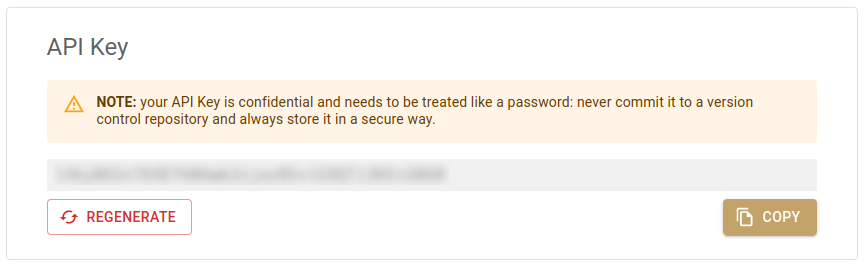
After registering, log in to the Cloud Dashboard, scroll down until you see the box below, and copy your API key.
How authentication works
Recognition requests are authenticated with the API key itself: send it in the
X-Api-Key header of each request, as shown below. That is all you need for
this tutorial.
Everything beyond recognition — managing API keys, usage reports, event
storage and webhooks — is done via the
Carmen Cloud API, which instead expects a short-lived
bearer token in the Authorization header. You get a token by exchanging
your API key at the token endpoint; see the
Authentication reference for details.
Find a test image
Find an image with a transportation code visible, or download this one for a quick test:

Choose a code type to read
Available code types are:
eu-rail: European wagon and locomotive codes used across Europe to identify individual rail vehiclesam-rail: American wagon and locomotive codes used across the American continent to identify individual rail vehiclestruck: Identification codes used on trucks (ACCR, US DOT, Chassis)iso: ISO codes for containers and identification of intermodal loading units (ILU)
Optional recognition headers
| Header | Applies to | Behavior |
|---|---|---|
X-Disable-Additional-Code | iso, eu-rail | Disable Additional Code (optional): Setting true disables additional code reading for iso and eu-rail, such as the ISO equipment/type code. Supported by OCR engines from 7.3.20.46. If present, this header takes precedence over X-Disable-Iso-Code, including when its value is false. Other engine types ignore it. When omitted, the deprecated ISO header is used as a fallback; if neither header is set, additional code reading is enabled. |
X-Disable-Iso-Code | iso, eu-rail | Deprecated — Disable ISO Code (optional): Use X-Disable-Additional-Code instead. The legacy header remains accepted for iso and eu-rail.On OCR engines from 7.3.20.46, it is a fallback only when the new header is omitted. An explicit false value of the new header also takes precedence. |
X-Disable-Checksum-Check | Older OCR engines | Deprecated — Disable Checksum Check (optional): Retained for compatibility with older OCR engines. From 7.3.20.46, checksum checks are handled internally by the engine and cannot be configured. This header has no effect on the returned result. |
X-Enable-Full-Us-Accr-Code | truck | Enable Full US ACCR Code (optional): Enables full US ACCR code recognition. NOTE: This parameter applies only to the TRUCK engine ( truck code type, or legacy accr_usa); other engines ignore it. |
Send a request to the Transportation & Cargo API
Using your tool of choice, send the following POST request to the URL https://api.carmencloud.com/transport/<type> (substitute the region you have chosen in the previous section):
- Header:
Content-Type: multipart/form-data - Header:
X-Api-Key: [YOUR_API_KEY] - Field
image: the test image with its appropriate content type (e.g.image/jpegorimage/png). Multiple images can be sent in a single request by using theimagefield multiple times. - Field
maxreads: the maximum number of codes to read (optional, default is 1)
For example, using the test image linked before:
- cURL
- Python
- JavaScript
curl -X POST 'https://api.carmencloud.com/transport/am-rail' \
-H 'X-Api-Key: [YOUR_API_KEY]' \
-H 'Content-Type: multipart/form-data' \
-F 'maxreads=1' \
-F "image=@transport-api-test-image.jpg;type=image/jpeg"
import requests

with open("transport-api-test-image.jpg", "rb") as image:
    response = requests.post(
        "https://api.carmencloud.com/transport/am-rail",
        headers={"X-Api-Key": "[YOUR_API_KEY]"},
        data={"maxreads": 1},
        files={"image": ("transport-api-test-image.jpg", image, "image/jpeg")},
    )

response.raise_for_status()
print(response.json())
// Node.js 18+ (fetch, FormData and Blob are built in)
import { readFile } from "node:fs/promises";

const form = new FormData();
form.append("maxreads", "1");
form.append(
  "image",
  new Blob([await readFile("transport-api-test-image.jpg")], { type: "image/jpeg" }),
  "transport-api-test-image.jpg"
);

const response = await fetch("https://api.carmencloud.com/transport/am-rail", {
  method: "POST",
  headers: { "X-Api-Key": "[YOUR_API_KEY]" },
  body: form,
});

if (!response.ok) throw new Error(`HTTP ${response.status}`);
console.log(await response.json());
Prefer a ready-made client? Our SDKs wrap these calls for you: the
Node.js client (@adaptive-recognition/carmen-cloud-client)
and the Python package carmen-cloud-client (pip install carmen-cloud-client).
The homepage has copy-paste examples in
further languages.
The response will be a JSON object with the following structure:
{
  "data": {
    "codes": [
      {
        "code": "NFL049511",
        "confidence": 96,
        "imageResults": [
          {
            "found": true,
            "text": "NFL049511",
            "confidence": 96,
            "characters": [ ... ]
          }
        ],
        "engine": "cmocr-7.3.16.223:am_rail",
        "proctime": 321
      }
    ]
  },
  "nodename": "9f2f4fae-c858-49f9-a16d-12dc08042343 ([70]36549e57d4794a17a0c8bd1e10d2e065)",
  "nodetime": 421,
  "version": "1.0"
}